




Showing posts with label word. Show all posts
Showing posts with label word. Show all posts
Thursday, 26 June 2014
A corrupt MS Word
document shows abnormal behaviors after you open it. In many cases
such a Word document does not open at all. In both the situations,
the user will not be able to access and use the document as per his
requirements. Microsoft recommends some methods for repairing the
corrupt Word documents, depending on whether you can open it or not.
Also, you can use some professional-third party tools for repairing
them.
Some Microsoft
recommended methods for repairing MS Word 2007/2010 documents are
listed below.
How to repair a Word document if you can open it?
- Change the template used by the Word document
- Start Word using its default settings
- Change Printer drivers
- Use safe mode of Windows OS
- Repair Word document using Open and Repair command
- Change the format of the document, and then change it back to Word format
- Copy the entire Word document contents to a new document
- Copy the undamaged parts of the affected document to a new document
- Change the document view and remove the damaged content
How to repair a Word document if you cannot open it?
- Open the damaged Word document in draft mode without updating its links
- Insert the damaged Word document into a new one
- Create a link to the damaged Word document
- Use the ‘Recover Text from Any File’ converter
Repair the Word Document by Changing its Template
Here we will show you to
repair the Word document by changing its template. It involves three
steps:
- Find the template used by the Word document.
- Rename the template if it is the global template; if it is not, change it to the global template.
- Finally, check if the issue has been fixed.
But if you fail to repair
the document using this method, you need to proceed to the remaining
methods mentioned above.
Note: The screenshots
shown here are for MS Word 2010 in Windows XP.
Find the template used by the Word document
- Open the damaged
document, click File>Options on the Ribbon.

- Click Add-Ins,
select Templates in the Manage box, and click Go.

- The Document
template box of the dialogue box displays the template that
is used by the document.

Rename the template if it is the global template; if it is not, change it to the global template
The Document
template box of the dialogue box displays the template used
by the Word document.
If the template is Normal -
- Exit MS Word.
- Click Start > Run; type %userprofile%\Application Data\Microsoft\Templates in the Open box. Press ENTER.

Note: If you are using Windows 7/Vista, click Start , type
%userprofile%\appdata\roaming\microsoft\templates in
the Start Search box and press ENTER.
- Right-click on
Normal.dotm; click Rename.

- Type Oldword.old, and press ENTER.
- Finally, close the Windows Explorer.
If the template is not Normal -
- Open the damaged document using MS Word.
- In MS Word 2010, click File>Options on the Ribbon (In MS Word 2007, click the Microsoft Office button> Word Options).
- Click Add-Ins, select Templates in the Manage box, and click Go (refer to the diagram in the beginning).
- Click Attach.

- Select Normal.dotm, from the Templates folder; click Open.
- Click OK (to
close the dialog box).

- Finally, exit MS Word.
Check if the issue has been fixed by the change of the template
Now open the damaged
document using MS Word to check if the damage has been rectified. If
not, you need to proceed to the remaining methods. Also, you can
depend on professional-third party tools to repair the Word documents
quickly, visit here : http://www.repairdocfile.com/
Wednesday, 16 April 2014
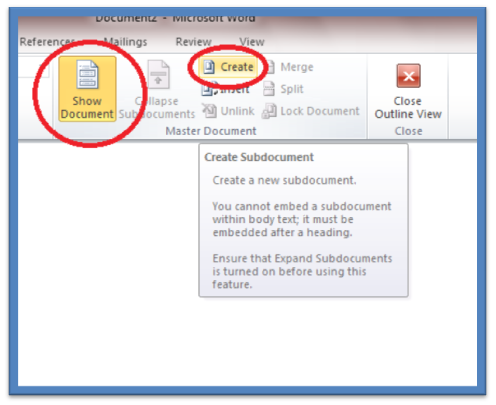
When we create sub
documents in MS Word it's known as Word Master Document.
Therefore, a word master document file is very important file utility and several sub documents can be created with the help of this utility.
Therefore, a word master document file is very important file utility and several sub documents can be created with the help of this utility.
What is the exact meaning of Word Master Document?
Master documents file is the series of links to sub documents and we can manage and organize other documents in a single documents.Like other Word documents (.doc), these Master Documents also has the issues of corruption. When the pointer or the entry in the table that points to master document is corrupt then corruption will be occur in the Master Document. Because of this you cannot access the doc file
You can easily recover your corrupt word file, if you have the latest backup. Think what
will happen if backup is not available? Now, for accessing your Word
document file you will need word recovery software by which you can
accurately and securely recover your word document file.
When corruption is occurred to the file, we encounter following error message:
This document may be corrupt. To preserve the contents:

- Choose Select All
from the Edit menu, then choose Copy from the Edit menu.
- Create a new
document, then choose Paste from the Edit menu.”
Normally,
people lose self-control
on occurrence of this error message because indicates danger for word
document file. However, you should not worry after seeing this error
message and try to find out the main cause and resolution for the
corruption taking help of Word document recovery tools.
Cause
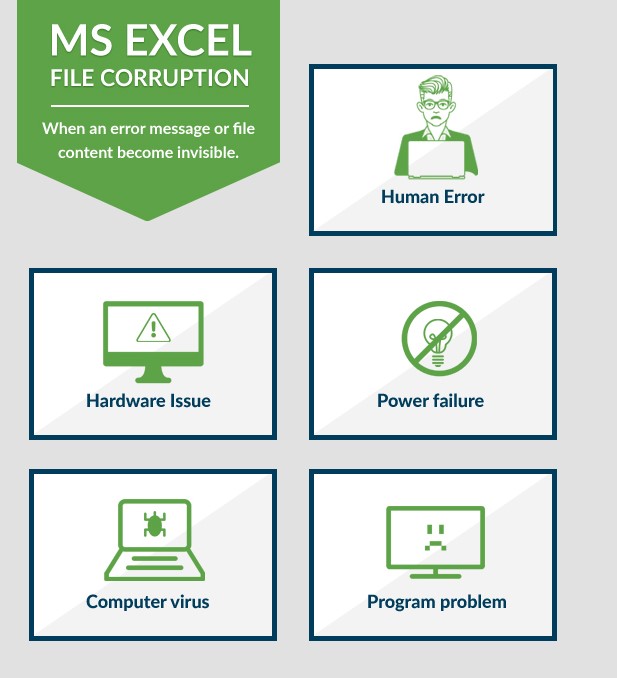
When above mentioned
error message is seen it means that the document has got corrupt.
Generally corruption occurs, when the pointer or the entry in the
table gets corrupt. Another reason for this corruption is that when a
Word file is not able to keep a track of the information of expanded
sub documents in the master document.
Resolution
There are various doc
recovery tools available in the market so you should not worry about
the corruption of your Word file data. They can easily recover all
the lost or deleted word document data. As the master document may
contain crucial business data, using Word file recovery tool is a
prudent.
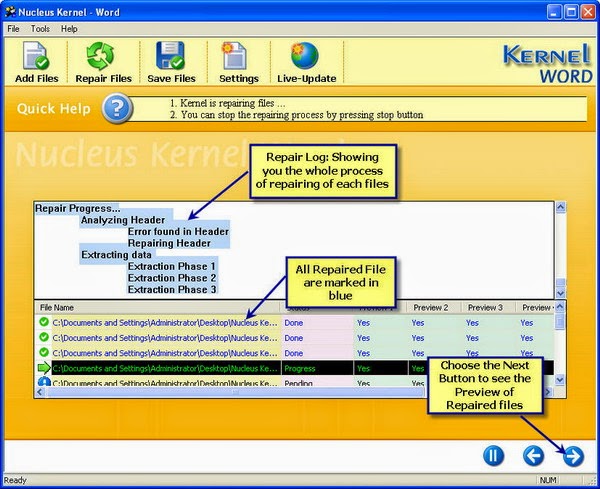
Kernel for Word document recovery is one of the most popular Word file recovery tool and with the help of this tool you can get access to your lost .doc file data. Don't Worry, after recovery of data, this tool will maintain data integrity.
This software recovers
each and every Word file components including tables, billeted lists,
embedded images, chart and drawing without any difficulty. Visit our help center : http://www.repairdocfile.com/
When
using MS Word for document creation, you need to either use the
default template or import the customized template. You need to
import the customized Word template to apply your own styles to the
Word document. In general, default template is used in MS Word.
Normal.dot is the default template file, which gets loaded when you
start MS Word.
Even
if you want to use the customized template, the Normal.dot file will
load because along with enabling you to use customized styles, MS
Word by default provides global styles. If the Normal.dot file is
damaged, you need to perform Word file repair because until the
Normal.dot file is not repaired, Microsoft Word will not start.
Listed below are some of the error messages that will help
identifying corruption in the Normal.dot file:
- HRESULT:
0x8001010A VB Error: -2147417846 "The message filter indicated
that the application is busy"

- HRESULT:
0x800A175D VB Error: 5981 "Cannot open macro storage"

- HRESULT: 0x800A142D VB Error: 5165 "Word cannot open the existing [square]"
You
must need to resolve the above listed error messages to use MS Word
in a flawless manner.
Solution
Though,
the best solution to resolve the aforementioned issues it Word file
repair, here, we first tell you the hit and trial method. Executing
the below given steps will help resolving the issue mentioned above:
- Explore the C drive. Here, we are assuming that C drive is your default drive.
- Open the Documents and Settings folder.
- Open the folder having user name. User name is the name that you specify at the time of installing Windows operating system.
- Open the Application Data folder.
- Open the Microsoft folder.
- Open
the Templates folder.

- Right-click the Normal.dot file and select the Rename option.
- Rename the file.
- Open the file with MS Word and see if it is opened.
If
the file is opened then it means your problem is resolved, however,
in case, the file is not opened, you need to perform Word file
repair. Performing Word file repair means to repair the corrupt
Normal.dot file. You can do this with the help of Kernel for Word
software, which supports repairing files having .dot, .dotm, .doc,
.docx, and other formats.
Once
you have selected the Normal.dot file to repair with the Kernel for
Word software, the software prompts you to click the Repair button.
On clicking the Repair button, the software starts repairing the
selected file. Within few moments, the file will be repaired, which
can be accessed with any version of MS Word. Download at here: http://www.repairdocfile.com/
Wednesday, 9 April 2014
Users
face doc file corruption issues which occur due to power failure,
abrupt system shutdown, virus attacks, corrupt storage media,
corrupted Windows OS, corrupted Windows Registry, and so on. While
opening such files, they shows an unusual behavior such as displaying
an incorrect layout, formatting, repeated line-breaks, gibberish
characters, and error messages. To minimize data disaster, you can
try possible ways that can be very helpful for you.
Resolution:
These
are numerous methods to recover a corrupted word document. You should
create a backup of your important doc file to get rid of any possible
issue.
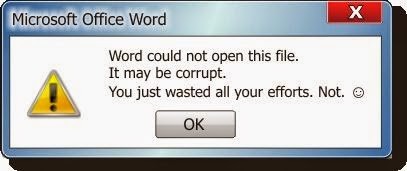
Save
Document to another File Format:
- Open the corrupted doc file with Microsoft Word
-
Save the file to another file format such
as Rich Text Format (.rtf)

- Close the document and reopen the file in Microsoft Word
- Save it as a new Word document (.doc)
Use
a shadow copy of the document:
Microsoft
Windows Vista, Windows 7, and Windows 8 have the capability to create
shadow copies of some documents. You should make sure whether a
shadow copy of your Word document exists or not, you can check it by
right-clicking it and selecting Properties from the popup menu. In
the Properties dialog, select the Previous Versions tab and select
one of the available versions as below:
- The Previous Versions tab appears only when your hard drive is formatted with NTFS.
- Before using the shadow copy feature, you must first configure it.
- You must be careful that a shadow copy will not be as complete as a created backup.
Open
the File in WordPad and create new doc file:
- Click Start, point to Programs, point to Accessories, select WordPad
-
From the File menu, click Open and select
the damaged document

- The word document may have some random binary strings. Delete all characters that do not belong to the document
- On the File menu, click Save As
- In the File Name box, type a new filename and save it as a (.doc) format
- Restart Word
- Open the newly saved file and re-save it as a word document
Copy
all except the last paragraph mark to a new document:
- Open the corrupted doc file with Microsoft Word
- Press CTRL+END, and then press CTRL+SHIFT+HOME
- If your document contains section breaks, copy only the text between the sections breaks.
- Click Normal on the View menu.
- Copy and paste the content into a new document
Configure
auto recovery option (MS Office 2007):
- Click the Microsoft Office Button
 , and
then click Word Options.
-
In the Navigation Pane, click Save.

-
In the AutoRecover file location box, note
the path, and then click Cancel.

- Close Word.
-
Look for files whose names end in .asd
(AutoRecover files).

- If you find the Word document that you are looking for, double-click it to open it.
- Save it immediately.
Warning:
The AutoRecover feature of MS
Word performs as an emergency backup when an error occurs. Some
errors can interfere with creating an AutoRecover file and
AutoRecover feature is not a substitute for saving the document.
These
above given methods may be helpful for you. But, if doc file is
severely corrupted then you may not get desired result with these
methods. So, you should look for a third party Word file recovery
tool. Kernel for Word repair tool is a professional word file
recovery tool which performs in a proficient way and recovers every
bit of Word file data accurately. Read more http://www.repairdocfile.com/
Subscribe to:
Posts (Atom)

Popular Posts
-
 MS Excel spreadsheet is quite popular application due to its ability of storing and maintaining massive data. Also, it facilitates the...
-
 MS Excel is Microsoft’s popular spreadsheet application that is used extensively to enter, save and manipulate data in tables, rows and ...
-
 Those who use MS PowerPoint to create presentations can only understand the importance of PPT repair. PPT is a presentation file, which is...
-
 Microsoft has incorporated a tool named Detect and Repair in MS Office XP, Office 2003, and Office 2007 using which you can repair the c...
-
 When using MS Word for document creation, you need to either use the default template or import the customized template. You need to impor...
-
 Just like any other data file, MS Access database files are also not able to safeguard themselves from damage, error, and corruption. No...
-
 Users face doc file corruption issues which occur due to power failure, abrupt system shutdown, virus attacks, corrupt storage media, co...
-
 Excel spreadsheets too are prone to corruption, just like any other MS Office file. Corruption might hit an Excel file due to number of ...
-
 Marketing or Accountancy, Excel worksheets are widely used for calculation purposes in small, medium, and large organizations. Many o...
-
 When we create sub documents in MS Word it's known as Word Master Document. Therefore, a word master document file is very importa...